Use Touch ID on iPhone and iPad
Learn how to set up and use Touch ID, a fingerprint identity sensor that makes it easy for you to get into your device.
Where is the Touch ID sensor?
The Touch ID sensor is either in the Home button or—on iPad Air (4th generation) and later and iPad mini (6th generation)—the top button. When you follow the steps below, your device's onscreen instructions will tell you which button to use. If you're not sure, learn which button is which on your iPad.
Set up Touch ID
Before you can set up Touch ID, you need to create a passcode for your device.* Then follow these steps:
Make sure that the Touch ID sensor and your finger are clean and dry.
In the Settings app, tap Touch ID & Passcode, then enter your passcode.
Tap Add a Fingerprint and hold your device as you normally would when touching the Touch ID sensor.
Touch the Touch ID sensor with your finger—but don't press—so the device can begin recognizing your fingerprint. Hold your finger there until you feel a quick vibration, or until you're asked to lift your finger.
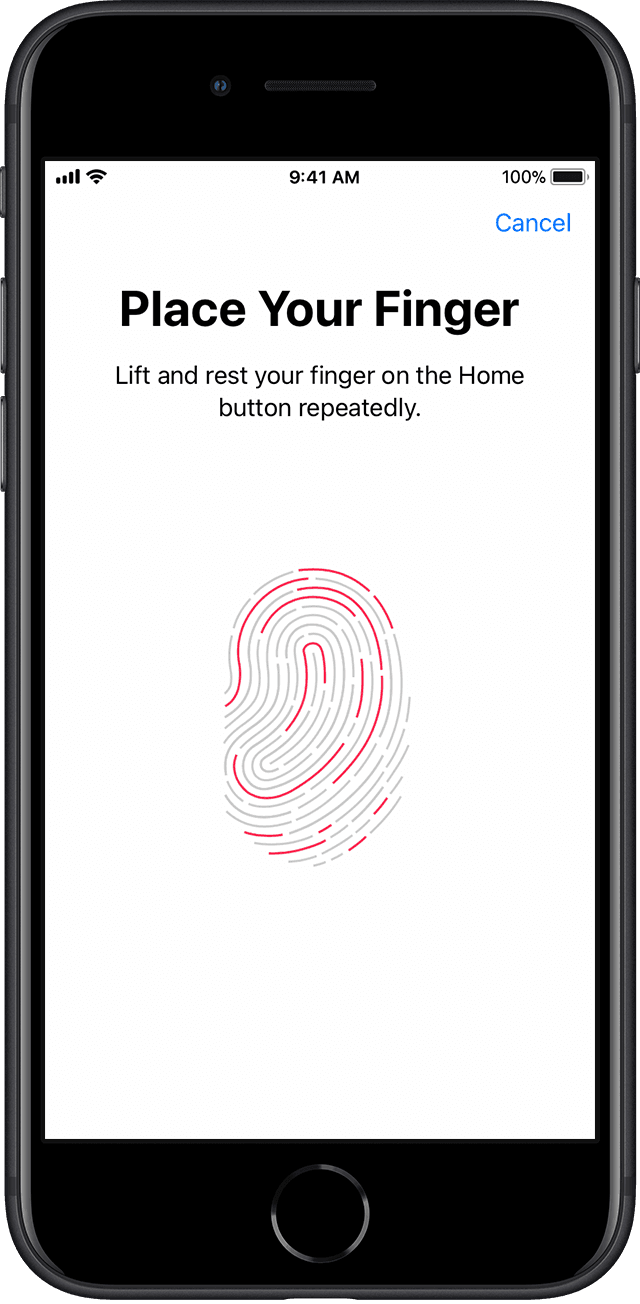
Continue to lift and rest your finger slowly, making small adjustments to the position of your finger each time.
The next screen asks you to adjust your grip. Hold your device as you normally would when unlocking it, and touch the Touch ID sensor with the outer areas of your fingertip, instead of the center portion that you scanned first.
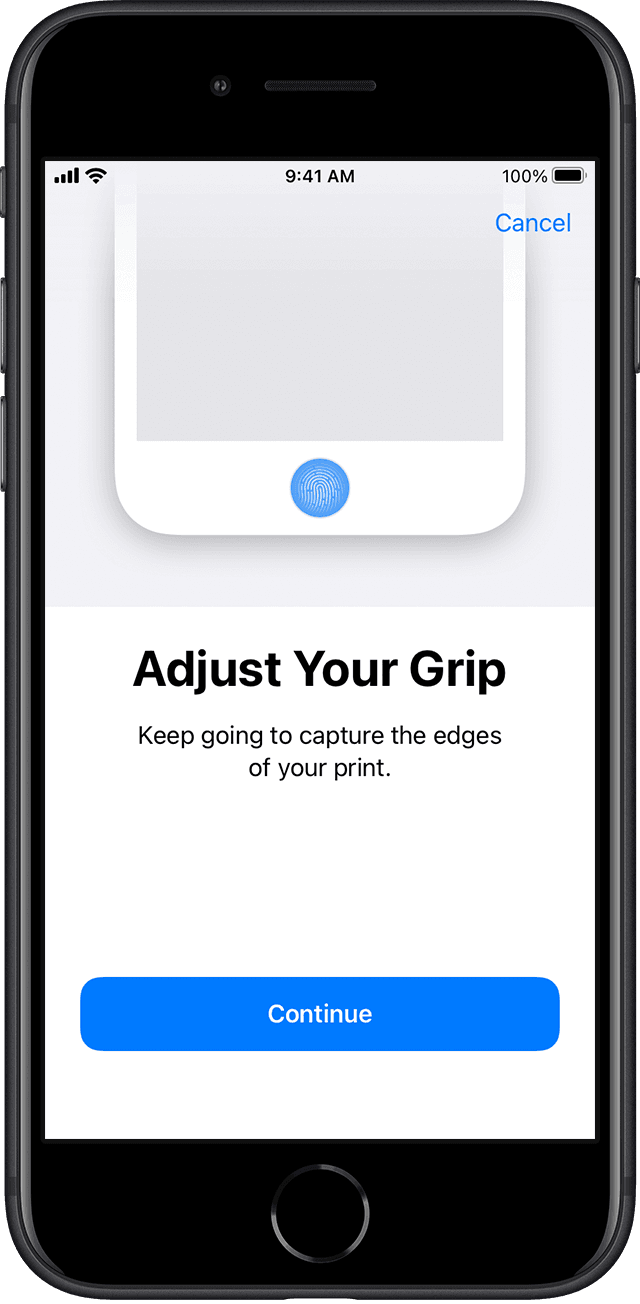
If you have trouble enrolling one finger, try another. Still need help setting up Touch ID?
Use Touch ID to unlock your iPhone or make purchases
After you set up Touch ID, you can use Touch ID to unlock your iPhone. Just press the Touch ID sensor using the finger that you registered with Touch ID.
Make purchases with Touch ID
You can use Touch ID instead of your Apple Account password to make purchases in the iTunes Store, App Store, and Apple Books. Just follow these steps:
In the Settings, tap Touch ID & Passcode and make sure that iTunes & App Store is turned on. If you can't turn it on, you might need to open the Settings app, tap iTunes & App Store, then sign in with your Apple Account.
Open the iTunes Store, App Store, or Apple Books.
Tap something to buy. You'll receive a Touch ID prompt.
To make a purchase, lightly touch the Touch ID sensor.

Use Touch ID for Apple Pay
With an iPhone 6 or iPhone 6 Plus or later, you can use Touch ID to make Apple Pay purchases in stores, within apps, and on websites in Safari. You can also use Touch ID on your iPhone to complete website purchases with your Mac. If you have an iPad Pro, iPad Air 2 or later, iPad (5th generation) or later, or iPad mini 3 or later, you can use Touch ID for Apple Pay purchases within apps and on websites in Safari.
Need help using Touch ID?
Manage your Touch ID settings
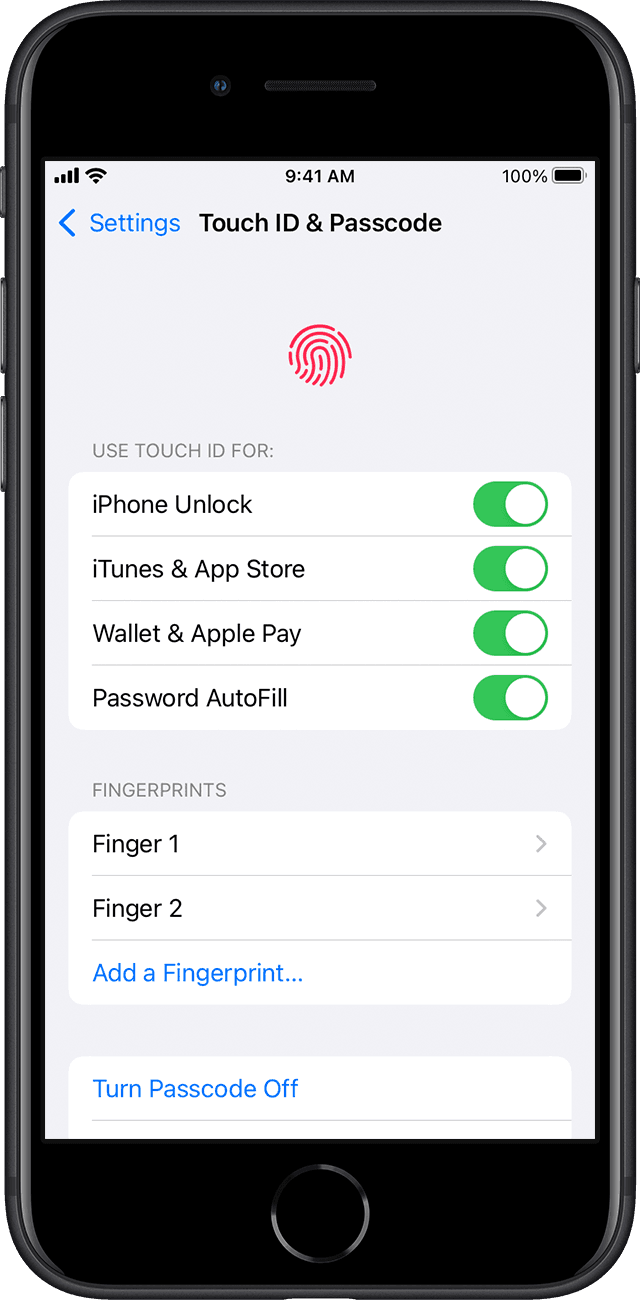
In the Settings app, tap Touch ID & Passcode to manage these settings:
Turn Touch ID on or off for Passcode, iTunes & App Store, or Apple Pay.
Enroll up to five fingerprints. Each new print might make fingerprint recognition take slightly longer.
Tap a fingerprint to rename it.
Tap a fingerprint, then tap Delete Fingerprint to remove it.
Identify a fingerprint in the list by touching the Touch ID sensor. The matching print in the list will be highlighted briefly.
Press the Touch ID sensor using Touch ID to unlock your device. To unlock your device using Touch ID without pressing the Touch ID sensor, go to the Settings app and tap Accessibility. Then tap Home Button [or top button] and turn on Rest Finger to Open.